On every device

Runs on the devicesyour shop already has

Nothing to install. Every screen opens in a web browser on phones, iPads, Android tablets, TV screens and computers, and every device sees the same data in real time.

All connected

One order, across every device in the shop

Every device sees the same data in real time. Nothing is typed twice and no paper slips change hands.

  1. Step 1A guest scans the QR and orders
  2. Step 2It appears on the kitchen screen
  3. Step 3Staff see it is ready to serve
  4. Step 4The cashier charges; the receipt goes to LINE
  5. Step 5Sales show up in the back office
Member card and QRTable menuReceipt in LINE

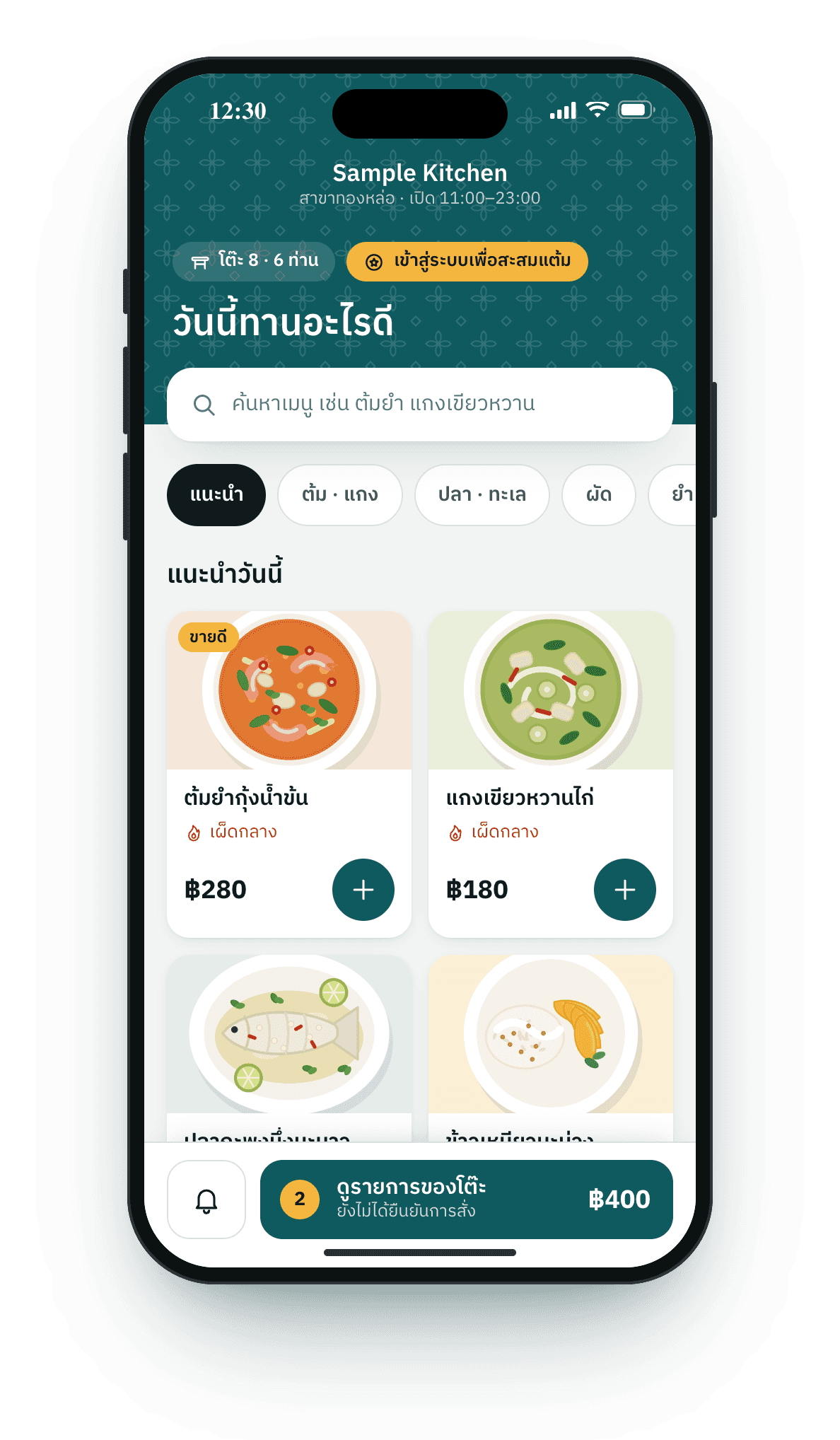
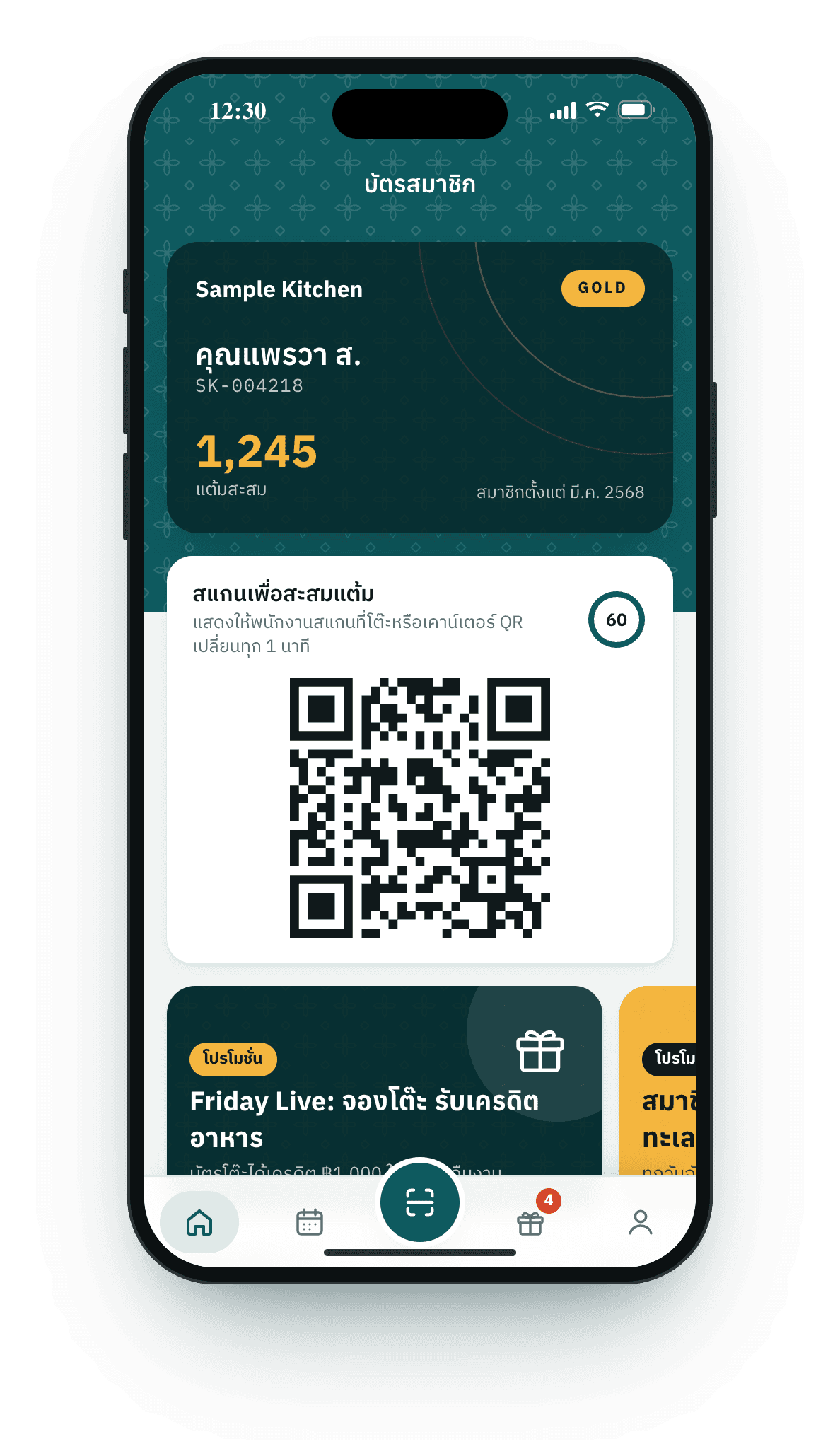
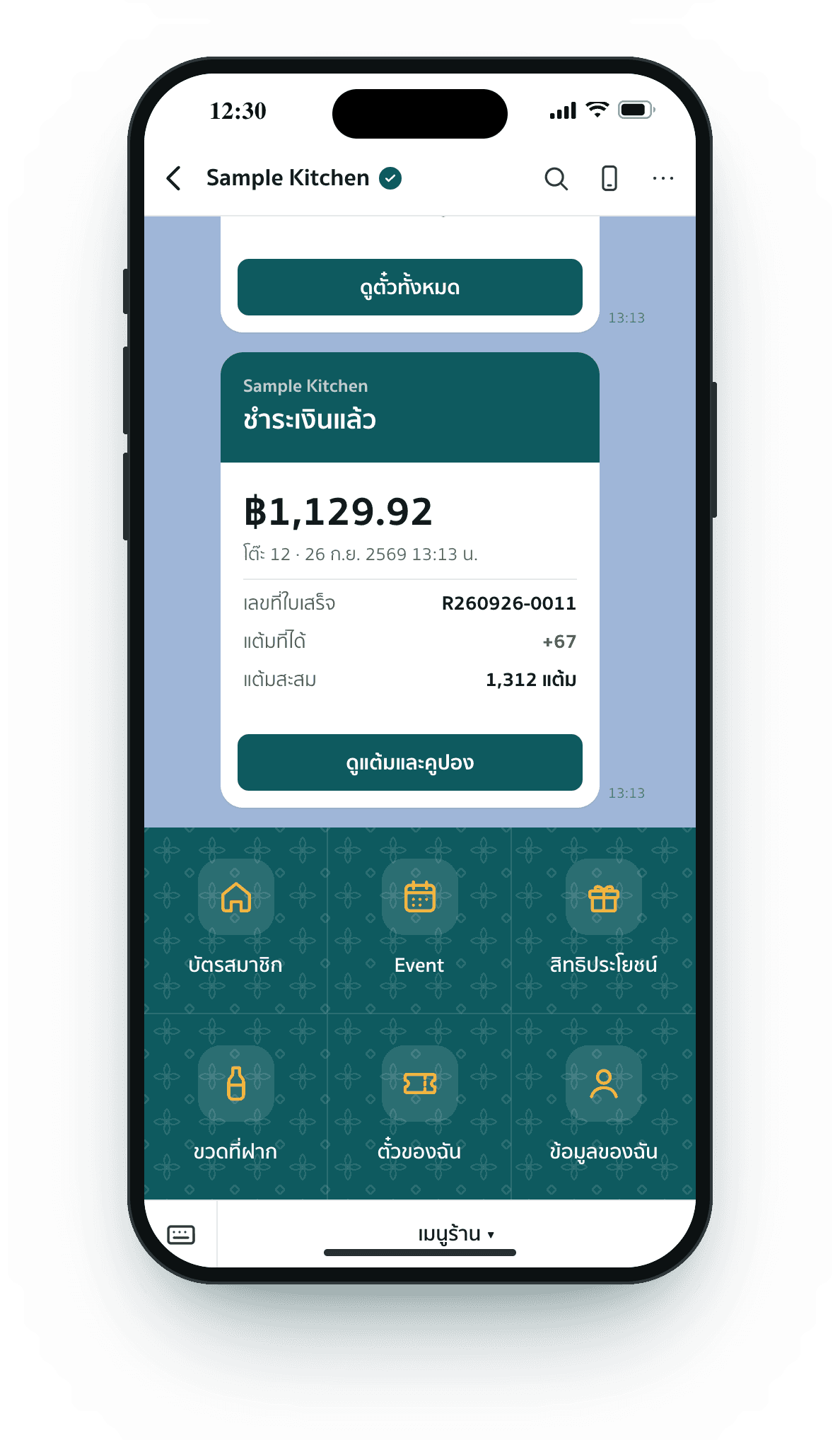
Guests' phones

Guests use their own phones, with nothing to install

They scan the table QR to see the menu and order, pay from the phone, and get the receipt and points in LINE. Member card, kept bottles and event tickets all live in your LINE OA.

Used byGuests at the tableMembersTicket buyers
  • Scan, order, call staff, ask for the bill
  • Pay by PromptPay or card
  • Member card, points, coupons and bottles
  • Book event tickets and get a QR ticket

What works · Any iPhone or Android phone with a camera and LINE

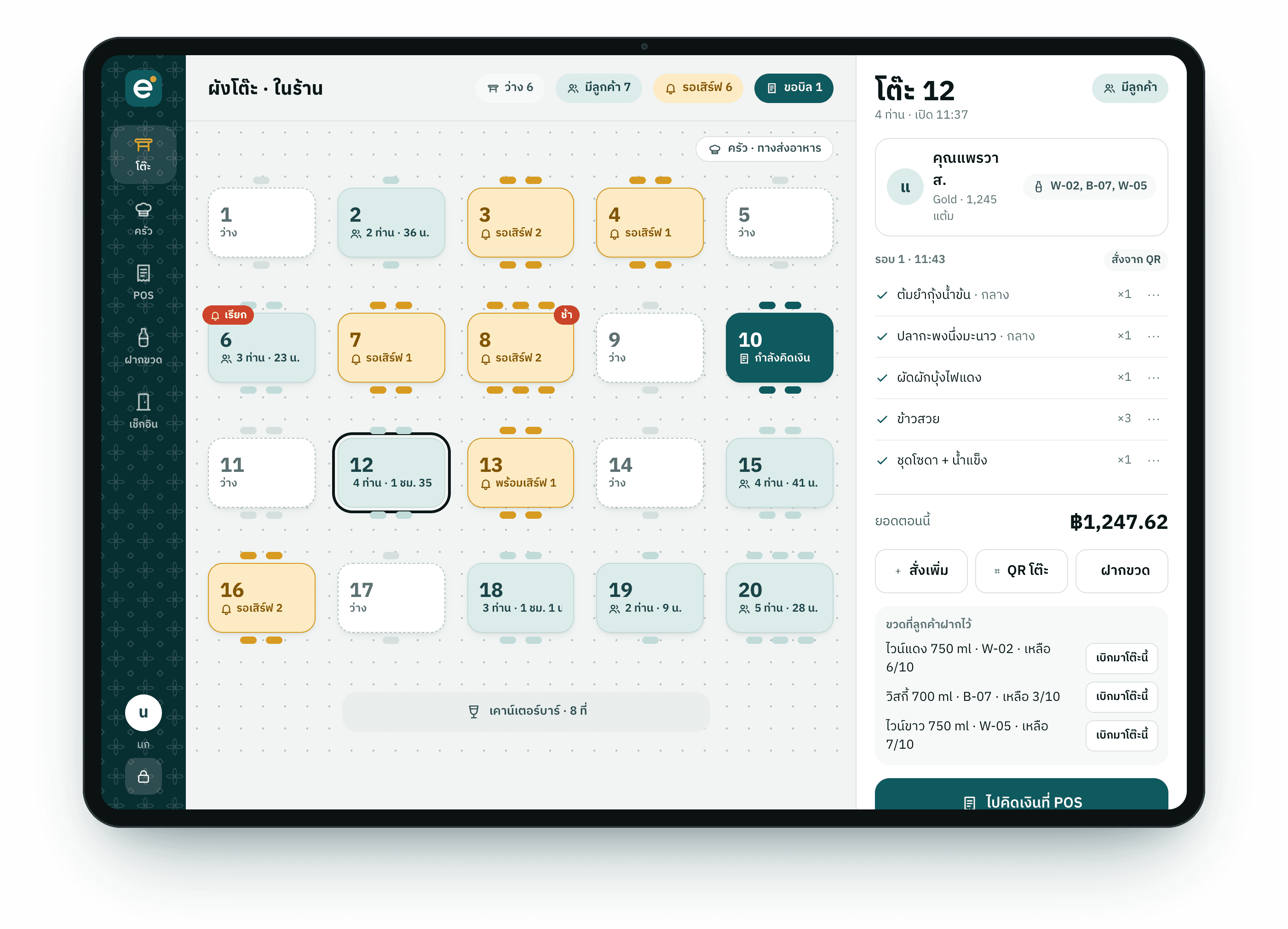
Live floor plan

Staff iPad or tablet

Staff run the floor from one tablet

A live floor plan shows which table is waiting for food, calling for staff or asking for the bill. Open a table, print its QR, and take orders for guests who would rather not scan.

Used byWaitersManagers
  • Live floor plan
  • Open tables and print their QR
  • Take orders and mark them served
  • Keep bottles and check in tickets

What works · An iPad or a 10-inch-plus Android tablet; a phone works too

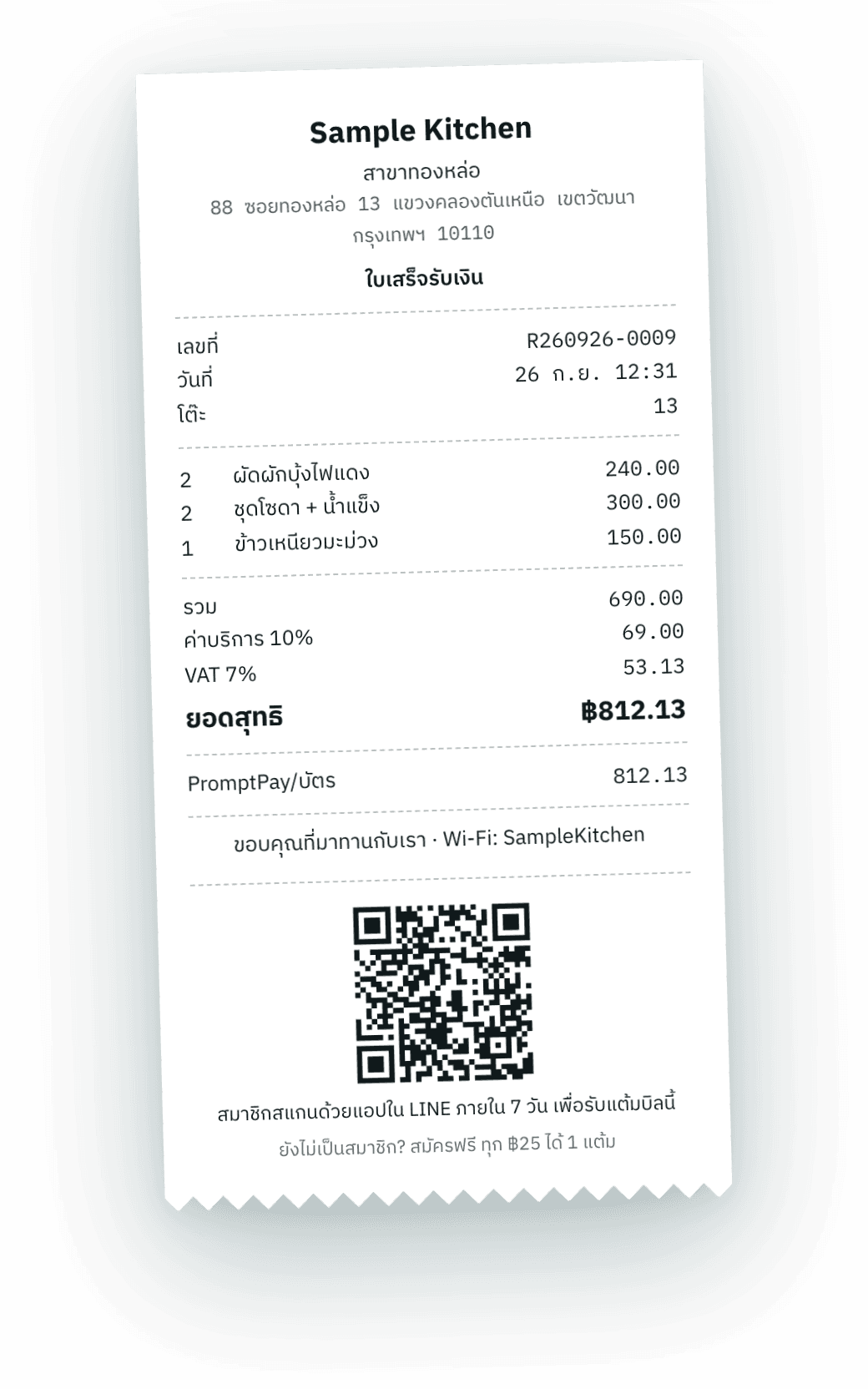
Take payment, split billsReceipt with a points QR

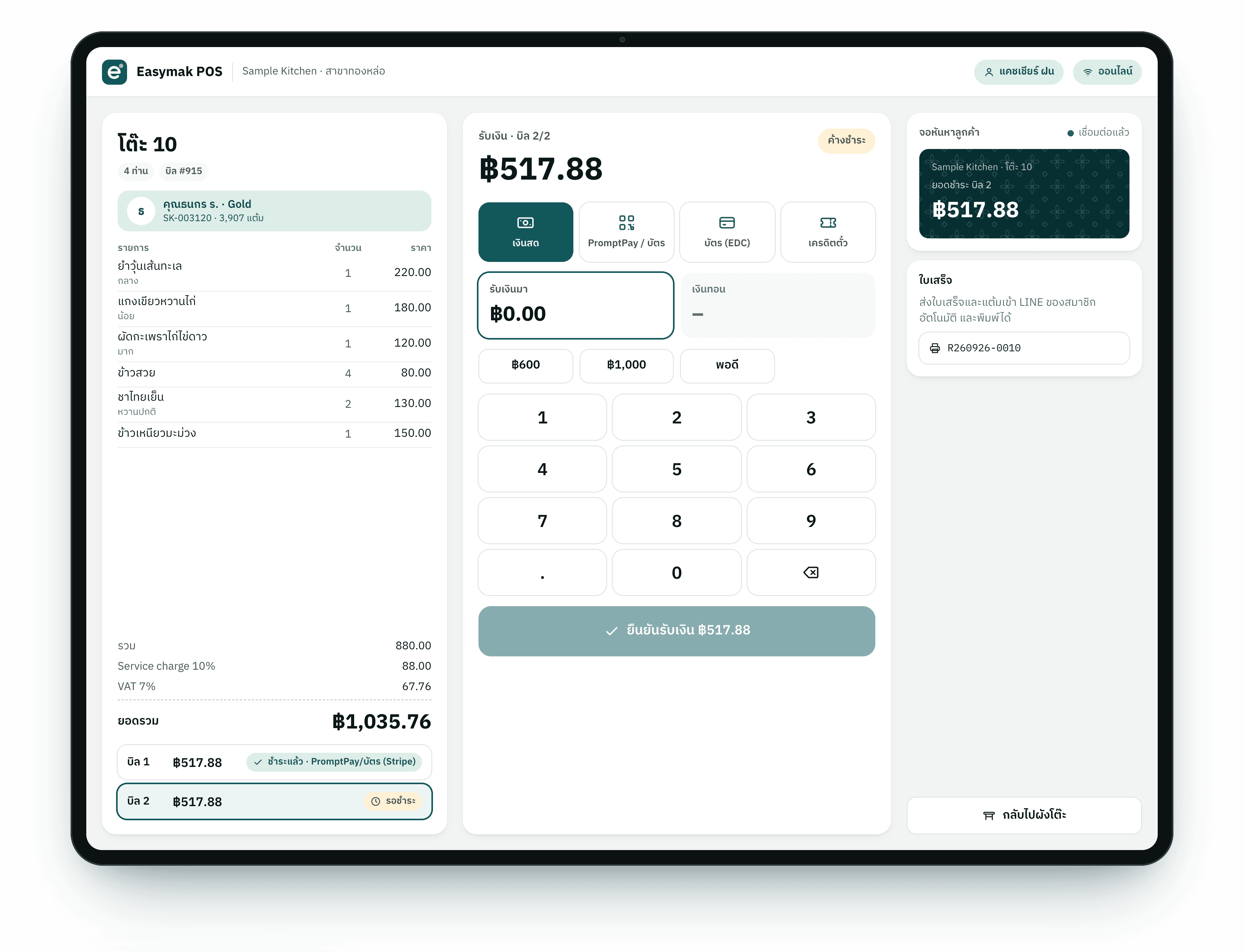
Cashier POS

Charge at the counter in a few taps

Pick the table, scan the member card for points, apply coupons, split the bill, take cash, PromptPay or card, and print a receipt whose QR lets guests claim points later.

Used byCashiersManagers
  • Split bills, coupons, link members
  • Cash, PromptPay QR, card (EDC)
  • Receipts with a points QR
  • A customer-facing total

What works · An 11–13-inch iPad or a computer, plus an 80 mm receipt printer if you like

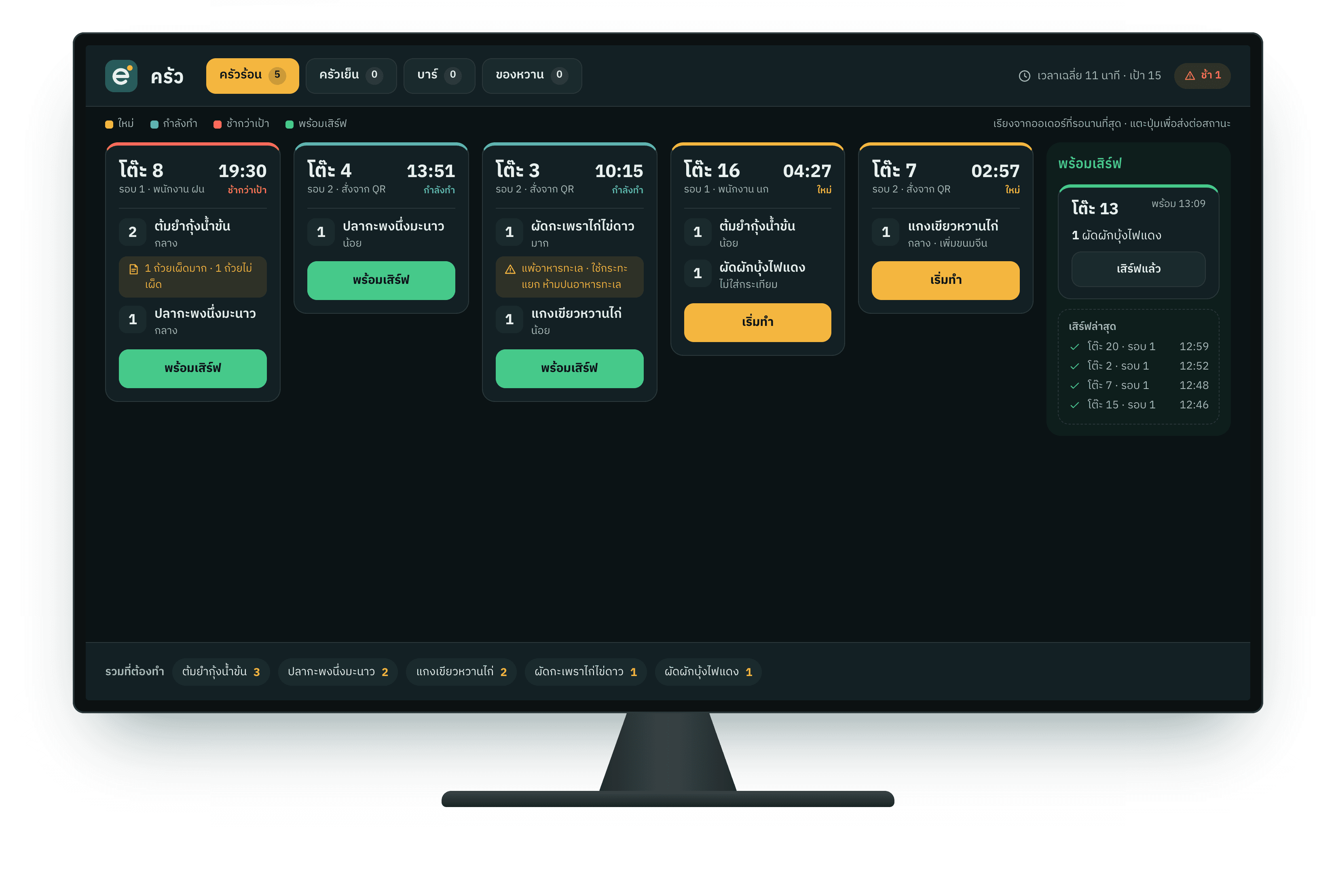
Kitchen display by station

Kitchen screen

Orders reach the kitchen at once, with no paper slips

Tickets split by station (hot, cold, bar, desserts), every order is timed with a warning when one waits too long, and a tap marks it started or ready, which the floor sees at once.

Used byKitchenBar
  • Tickets by station
  • Timers and late warnings
  • Tap to start, tap when ready
  • Allergy notes stand out

What works · A 24–43-inch TV or monitor with an Android TV box or mini PC, or simply a tablet

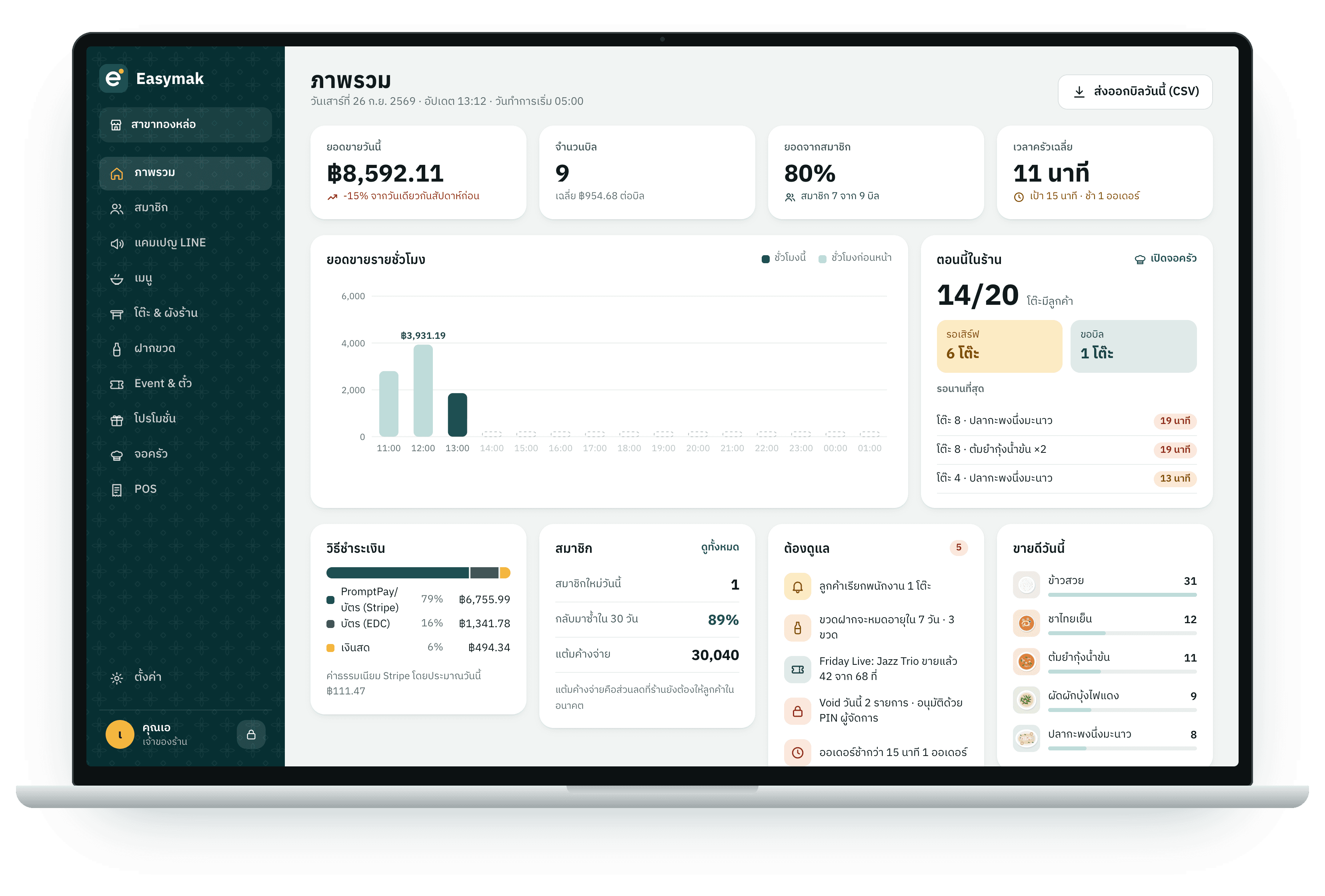
Shop overview

Back-office computer

Owners see everything, from anywhere

Hourly sales, members and their history, LINE campaigns, promotions, events and shop settings, from a computer, a laptop or an iPad.

Used byOwnersManagers
  • Today's sales and what needs attention
  • Member CRM and LINE campaigns
  • Menu, tables, staff and PINs
  • Export bills as CSV

What works · Any computer or laptop with a web browser

Optional extras

Add them when you are ready

Everything works without them; they speed things up on busy nights.

80 mm receipt printer

Prints receipts and the table QR slip when a table opens, straight from the browser.

Which one to buy

QR scanner

Scan member cards at the POS in a blink, or use the tablet camera instead.

Shop internet

Shop devices use your Wi-Fi; guests can use their own mobile data.

Receipt printer

Which receipt printer should you buy?

Receipts and table QR slips print through the browser's print dialog, so Thai text always comes out right. What matters is the device you print from.

80 mm thermalNo ink. Receipts and table QR slips are laid out for this width.
Auto-cutterEach slip comes out cut, ready to hand over.
LAN or Wi-FiThe POS and staff tablets can share it; USB or Bluetooth ties it to one device.
Cash drawer portIf you use a drawer, the Windows driver can open it on each print.

By the device you print from

Printing from an iPad or iPhone

It must support AirPrint

Safari on iPad only prints to AirPrint printers.

Good picks

  • Star TSP654II AirPrint (LAN or Wi-Fi)

Popular models such as the Epson TM‑m30III, Star mC‑Print3 and Star TSP143IV do not support AirPrint. With a computer at the counter, print from it instead.

Printing from a Windows PC or Mac

Almost any model with a driver

Install the maker's driver, then pick the printer in the browser's print dialog.

Good picks

  • Epson TM‑T82X‑II (very common in Thailand)
  • Epson TM‑m30III or Star TSP143IV
  • Budget: an 80 mm Xprinter or Gprinter

The first time, set the paper to 80 mm and margins to none in the print dialog; the browser remembers.

Printing from an Android tablet

Add a print service app

Chrome on Android prints through a print service. Install one for receipt printers, such as RawBT, and pick a LAN, Wi-Fi or Bluetooth printer.

Good picks

  • Any 80 mm receipt printer + the RawBT app

The free RawBT version adds a notice to each print. Test with a real printer before buying several.

Picks are based on the makers' information as of October 2026. We can help choose one and test it with your setup before installation.